
Fast switching between favorite playlists
With HotTunes you can assign global hotkeys to your favorite playlists and switch between them faster when your mood has changed. The global hotkeys allow you to execute the actions specified even when you work in a different application while TagTuner is minimized on the properties panel.
Note that to use HotTunes you need to have some playlists to which the shortcut keys may be assigned. If you don't have any playlists yet you can create them in two easy steps.
- Add songs to the Playlist panel. To do that you can click the “+” button on the Playlist panel and choose the needed songs through a standard Open dialog (you also can do the same thing by going to Playlist | Add Files or by pressing the Ctrl+O shortcut key). Or simply drag-and-drop files or folders from the File List as well as the File Tree.
- Save playlist. When your playlist is ready you can save it by clicking the Save button on the Playlist panel or go to Playlist | Save or press the Ctrl+Alt+S shortcut key. In the appeared dialog type the name of your playlist and click Save.
You are free to create as many playlists as you wish.
To choose playlists for HotTunes click Tools | Options or press Alt+O shortcut key.
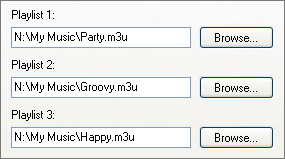
In the appeared dialog go to HotTunes page and use the Browse button to select the playlists you want to be assigned with global shortcut keys.
Make sure that the global hotkeys are enabled. To do that switch to the Global Hotkeys page and select the Enable Global Hotkeys checkbox.
If present global hotkeys will conflict with third party applications you can change them by going to Tools | Options, selecting the Global Hotkeys page and editing them from your keyboard.
Now you can enjoy your favorite playlists while switching between them through the shortcut keys you just assigned.
