
Rename Album Files with Media Tag Information
You can rename album files and their tag information faster. TagTuner provides two different tools to make renaming easy: the shortcut keys and the template editor. Let’s talk about it.

At first you need to browse for album that should be renamed in the File Browser tree. The File List at the File Browser right side shows you the content of selected folder. When an album with the meaningless file names is found you need to select tracks which should be renamed.
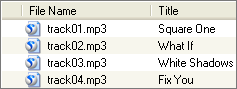
In case of one album per folder location it is enough to click Edit | Select All from the TagTuner menu or press Ctrl+A shortcut key to select all files in the folder. If you have several albums in the folder and do not want to rename all the tracks then please select the necessary tracks with the mouse. Use Shift key for range selection or Ctrl key for selecting tracks one-by-one.
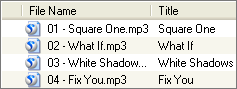
Now you just have to rename the selected files. The first time you probably would want to choose your own file name format. To do that, click File | Rename | Rename By Template from the TagTuner main menu or press Ctrl+F6 shortcut key. In the appeared template editor select one of the listed templates or create your own one by typing it from the keyboard or using the Template Variables buttons. Do not forget to set this template as default by pressing the Set Default button. This will let you save your time the next time you want to rename files. Press the Rename button to rename the files. Next time you are able to use the specified template. To rename files by default template without calling out the Template Editor click File | Rename | Use Default Template or press F6 shortcut key.
Once discovered, the Rename feature lets you to rename album media files easy just through Ctrl+A and F6.
You can also rename album, search for cover and other album information simultaneously.
